

Since it launched 25 years ago, SharePoint has come a long way. It’s now the backbone of Microsoft 365 and fulfills an emerging role as the knowledge platform for Copilot, SharePoint agents and custom agents built using Copilot Studio. And Microsoft continues to evolve the platform.
For communicators and intranet managers, it can be hard to keep up with the latest innovations, let alone make use of them. So, we’ve pulled together a handful of new intranet features and tools you can use to achieve your communications goals.
Some of these examples unlock native powers within SharePoint. Others showcase capabilities of Habanero’s GO Intranet, designed to take SharePoint to the next level all while staying inside the Microsoft 365 ecosystem.
Ready to make your intranet better and easier to manage? Let’s go!
Create a modern look and feel
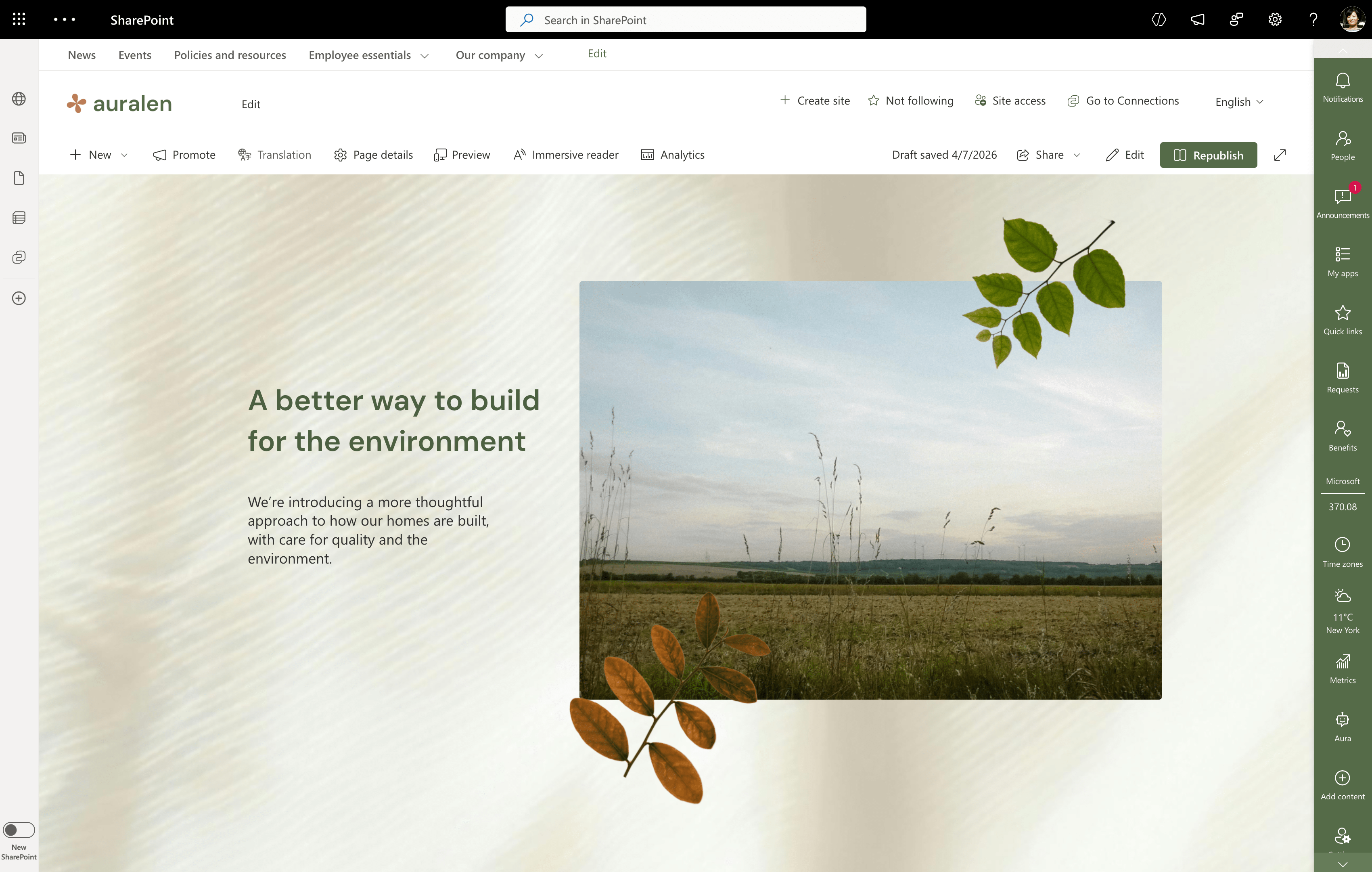
If you have struggled to create great-looking pages within SharePoint’s existing column structure, you’ll love this new feature that supports endless design possibilities.
SharePoint feature: Flexible sections (aka drag-and-drop layout design)
What it is: With this feature, you can easily edit a section panel on a page to create a unique design or layout based on the combination of web parts you add. It gives you more control over the look and feel of page content.
How to use it: It’s easy to drag and drop a web part anywhere on the grid. You can also:
- Resize the section making it bigger/longer
- Group web parts together
- Arrange layers of web parts like images to create an overlapping effect
Learn more about designing pages in modern SharePoint:
- Introducing flexible sections in SharePoint Pages and News
- Guide to creating awesome intranet pages in SharePoint
Simplify content authoring
These features can help you easily turn existing content into a draft intranet page, refine your writing or build out new sections on a page. Some of these features are still in preview, so you may not be able to create pages yet that leverage your organization’s custom templates.
SharePoint feature: Content authoring with Copilot AI
What it is: If your content authors have a Copilot licence, SharePoint now includes a variety of page and content writing assistance features to help you author new pages and create compelling content suggestions and section layouts for your intranet.
How to use it: There are a few different ways you can use Copilot to make intranet content creation easier and faster:
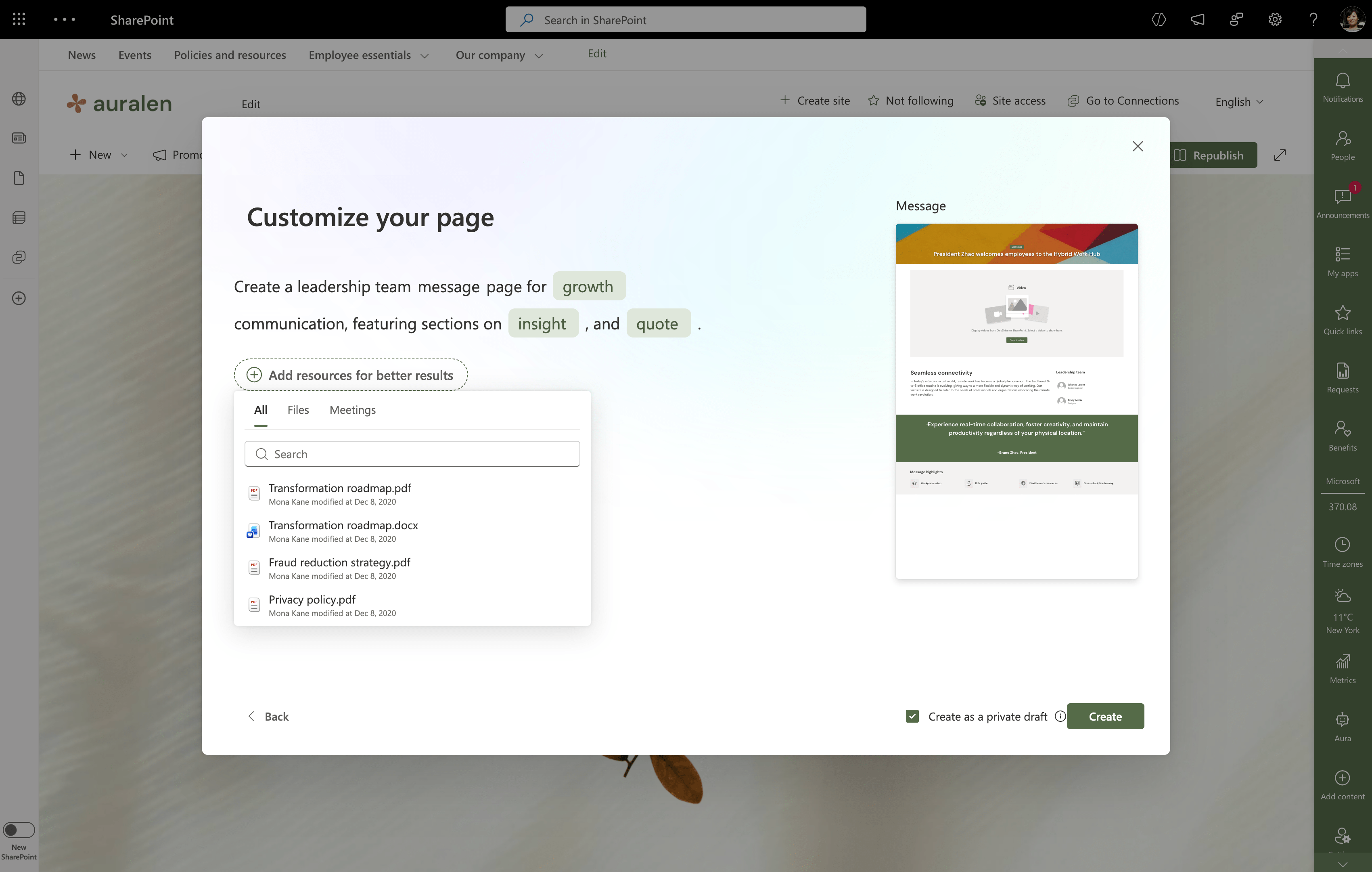
1. Create pages with Copilot AI in SharePoint
Copilot can help you create a new page through AI prompts and supports the inclusion of source documents that form the basis of the page. This is particularly helpful if you have your page content in a Word document and you’re looking for ideas on how to bring your content to life in SharePoint. This feature is already available when creating a new out-of-the-box SharePoint page and we expect to see AI in SharePoint evolve into an increasingly rich agent-driven authoring experience where page creation happens through natural conversation rather than having to know every SharePoint web part and how to configure it.
2. Adjust page content with Copilot AI in SharePoint’s rich text editor
Intranet authors can use this feature to refine their content with AI-suggested rewrites. For example, you can change the tone of the content to something more casual or more professional, depending on the context.
Authors can select specific content, review different suggested alternatives and accept or reject those changes before publishing the final page. Based on our experience, Copilot does a good job of presenting useful suggestions. But of course, AI content suggestions are just that; they always need to be checked for accuracy.
3. Build out new SharePoint page sections with Copilot AI
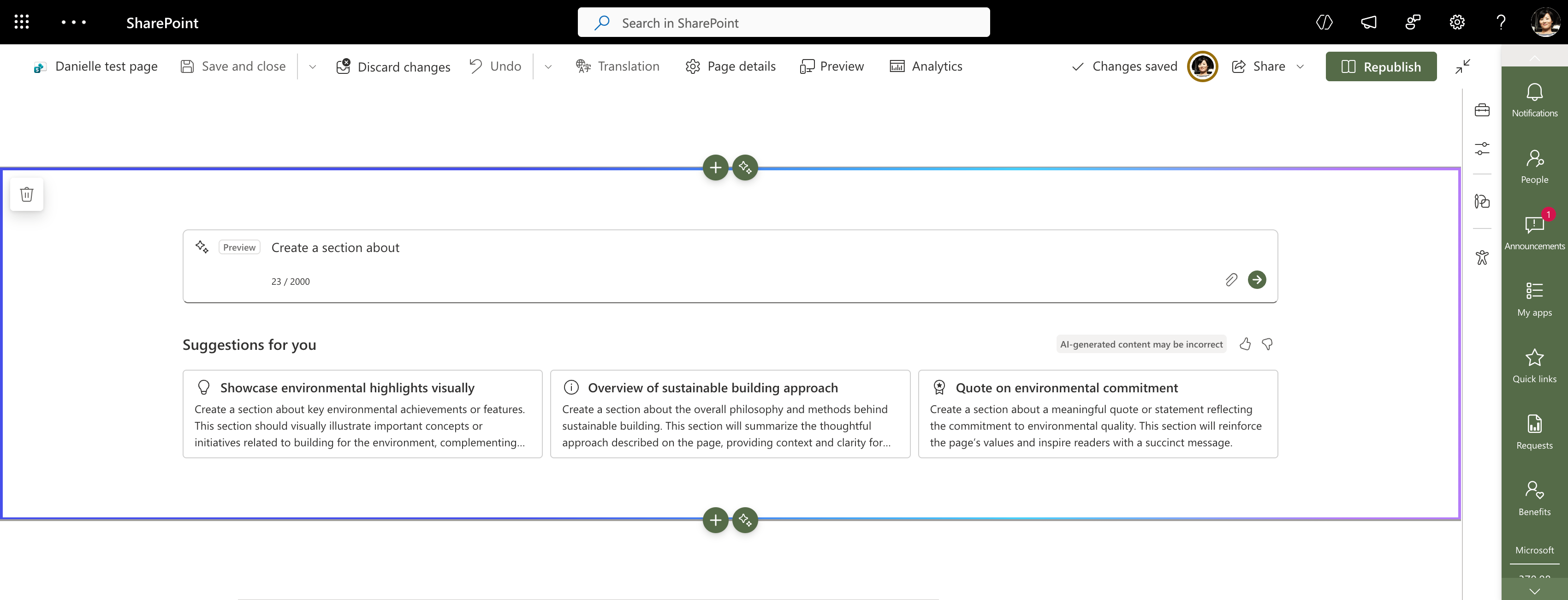
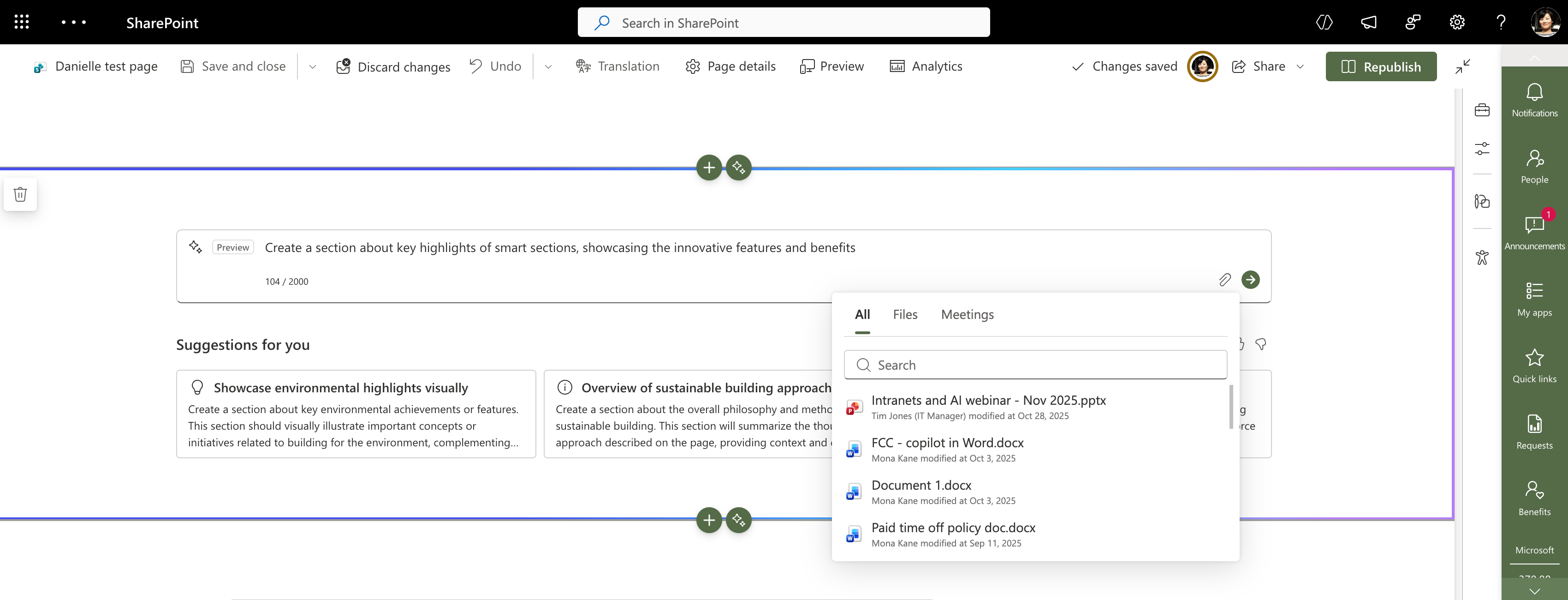
You can create a new section within your page using Sections with AI (aka Smart sections). Copilot will suggest an appropriate type of section or web part for your page. Or, you can direct it to a specific document or presentation to ground the section.
4. Build robust FAQs with the SharePoint AI-generated FAQ web part
Microsoft added the FAQ web part to help content authors quickly generate a summarized list of FAQs based on a large body of information. The idea is simple: you create a page, perhaps explaining a new concept or policy, then add a section at the bottom with answers to your readers’ most common questions.
Some communicators don’t like the idea of an FAQ web part, because answers should be addressed within the page content. But the reality is some people prefer to scan questions and answers. And soon, they may be using an agent to find the answers for them.
Here’s how to build an FAQ:
- Add the FAQ web part onto the page
- Ground the content with source files (which could even include a Teams meeting recording!)
- Define the purpose of the content (event, product, policy, other)
- Add any additional prompts such as the tone, format or target audience
Copilot will then generate the categories or recommended topics. You can rename topics, add or delete the suggestions and reorder the categories.
Once you’re happy with the categories, Copilot drafts the questions within each category. Again, you can reorder the questions, add new questions, edit the content or delete the question entirely.
Finally, use AI to generate the answers. At this point, you are free to edit the answers, edit individual content with Copilot again, add new questions and answers without overwriting all the previously generated content.
Learn more about using Copilot for content creation in SharePoint:- How to create SharePoint intranet pages with Copilot
- How to write with AI in SharePoint
- How to build SharePoint intranet page sections with Copilot
- How to use a FAQ web part in SharePoint
Deliver a great mobile experience
Organizations that use SharePoint for their intranet want to provide a great experience to their mobile and frontline workforce. With the SharePoint app for Teams (Viva Connections), you can now extend your SharePoint intranet experience to Microsoft Teams without building a custom mobile app.
SharePoint feature: SharePoint app for Teams mobile experience
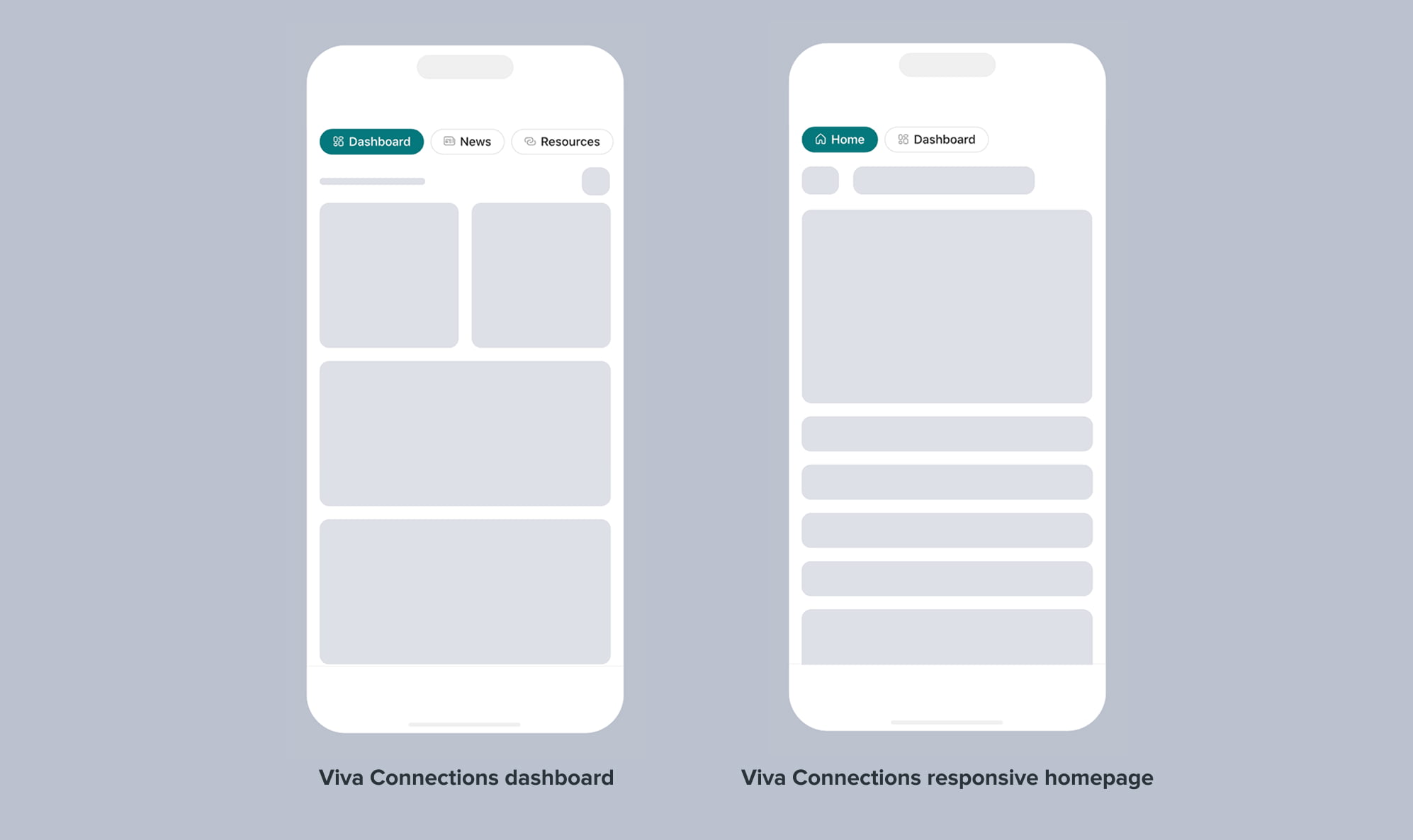
What it is: If you’re using the out-of-the-box SharePoint homesite experience and have experimented with the Viva Connections app for Teams, you may have discovered that Viva Connections could be used to extend your intranet to your mobile device, but you had to use the Viva Connections dashboard as your initial homepage experience. You could link to your full intranet, but this extra step created a barrier for users. With the new SharePoint app for Teams, it’s now possible to set up your SharePoint Home site intranet homepage as the primary landing page. If you’ve designed your intranet with a mobile responsive experience in mind, it automatically becomes an intranet in your pocket!
How to use it: You have two options of how to leverage the SharePoint app for Teams to create an exceptional mobile experience:
- The standard experience defaults to the dashboard, which requires you to setup dashboard components called Adaptive Card Extensions (ACE). If the dashboard satisfies your mobile use cases, you can use the dashboard as-is.
- Alternatively, if you’d prefer to showcase your corporate news exactly how you have it curated on your intranet, you can now configure the SharePoint app for Teams to start with the Home site and a responsive homepage experience instead of defaulting to the dashboard. This is a gamechanger for organizations that have a robust intranet and want to increase mobile adoption.
Make answers easier to find
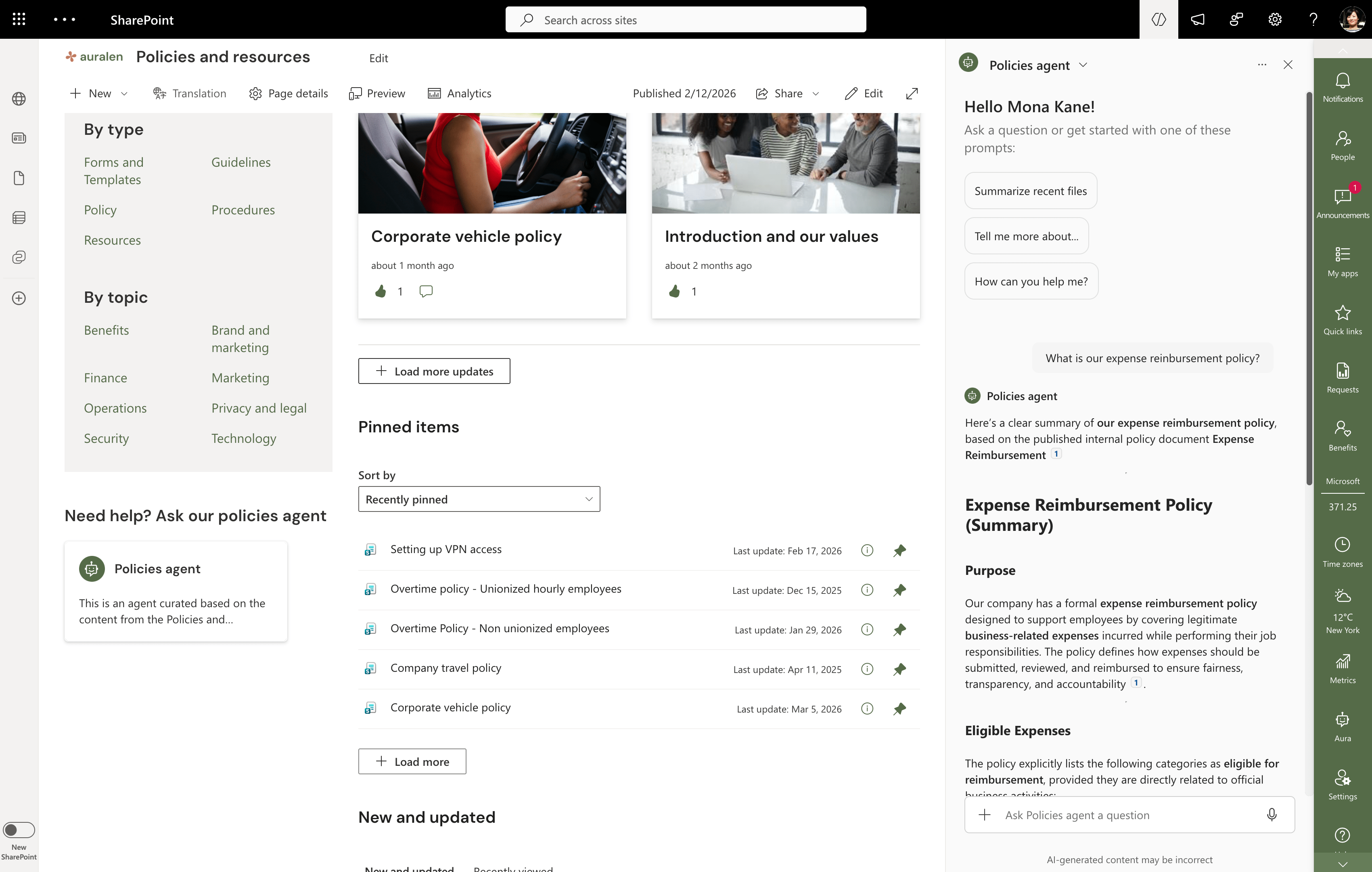
Agents are changing the way people find and engage with information on your intranet. Employees can now use natural language prompts to find content and answers.
SharePoint feature: Intranet AI agents
What it is: You can quickly configure a SharePoint AI site agent (aka chatbot) within a SharePoint site or build more robust custom agents for your intranet or other use cases with Copilot Studio.
Microsoft is also integrating the SharePoint Knowledge Agent into SharePoint and has renamed it to AI in SharePoint. Over time, we expect AI in SharePoint to become a primary agent interface for both employees, content owners and SharePoint administrators.
How to use it:
Here are some quick tips for using agents:
- Consider whether you want to have one agent for the entire intranet or multiple agents that are specific to a unique business area.
- Be sure to scope the agent appropriately as some agents benefit from a wider scope of content and some benefit from a much more focused experience.
Learn more about the SharePoint Knowledge Agent
Maintain content freshness and accuracy
Companies often struggle to keep on top of content governance activities. Scaling content review practices across a large content authoring community and maintaining healthy intranet governance practices to minimize outdated or inaccurate content can be a lot of work when done manually. Microsoft is starting to make this easier with capabilities they are building into the AI in SharePoint to identify pages that aren’t being maintained or with the SharePoint Advanced Management (SAM) features that detect inactive sites. To ensure content is updated regularly, we’ve added our own secret weapon to the intranet manager’s toolkit.
GO Intranet feature: Content lifecycle management
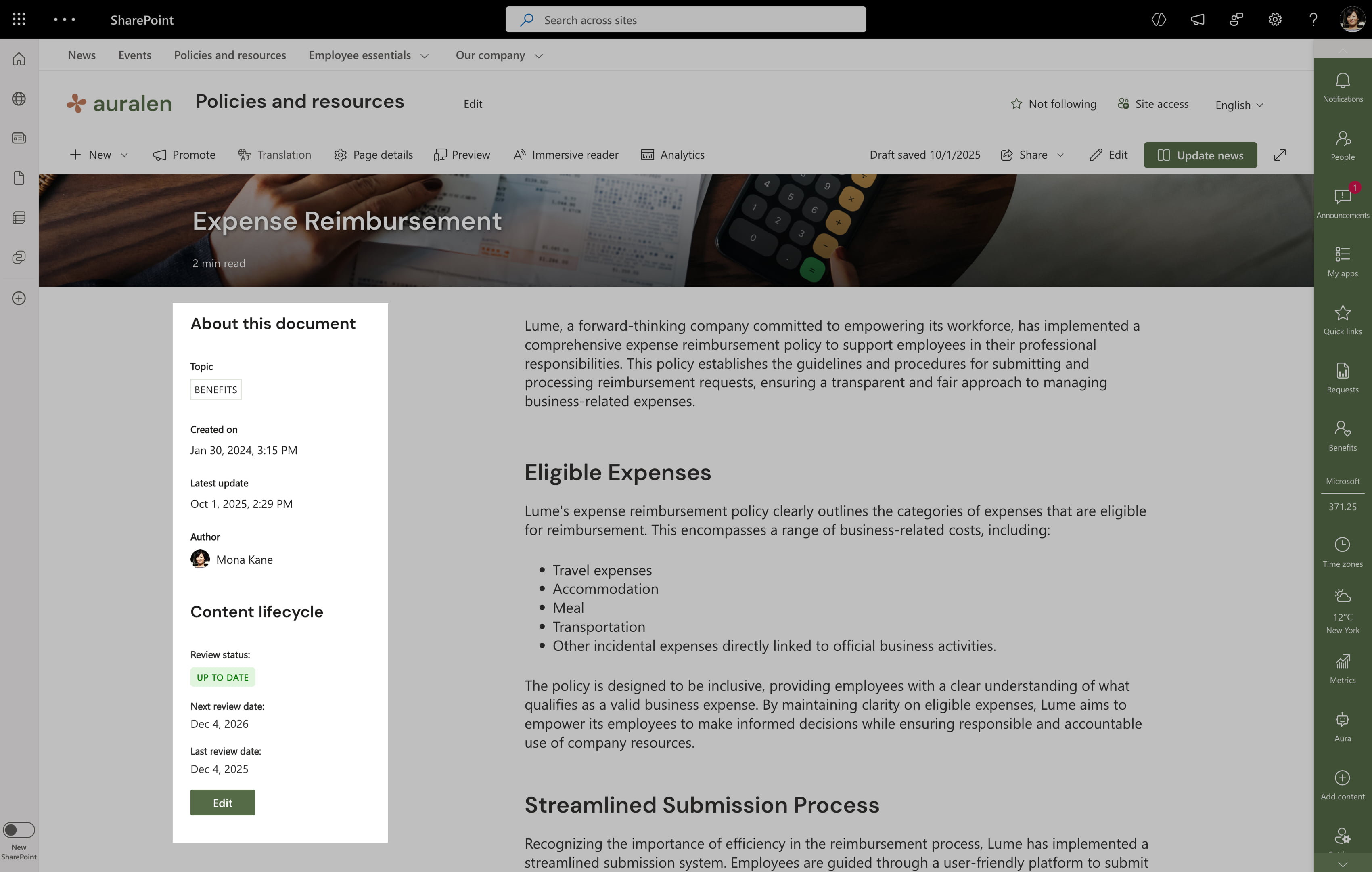
What it is: Available within GO Intranet, this feature allows authors to schedule and track content reviews for pages, documents and other files in SharePoint.
How to use it: When this web part is added to a page, its details are pulled into a central dashboard that records page edits and other details. Every month, content owners receive notifications for pages that are due to be reviewed or are overdue.
The content lifecycle report gives your intranet manager and content author community a clear picture of what content is coming up for renewal or has already expired and needs to be updated.
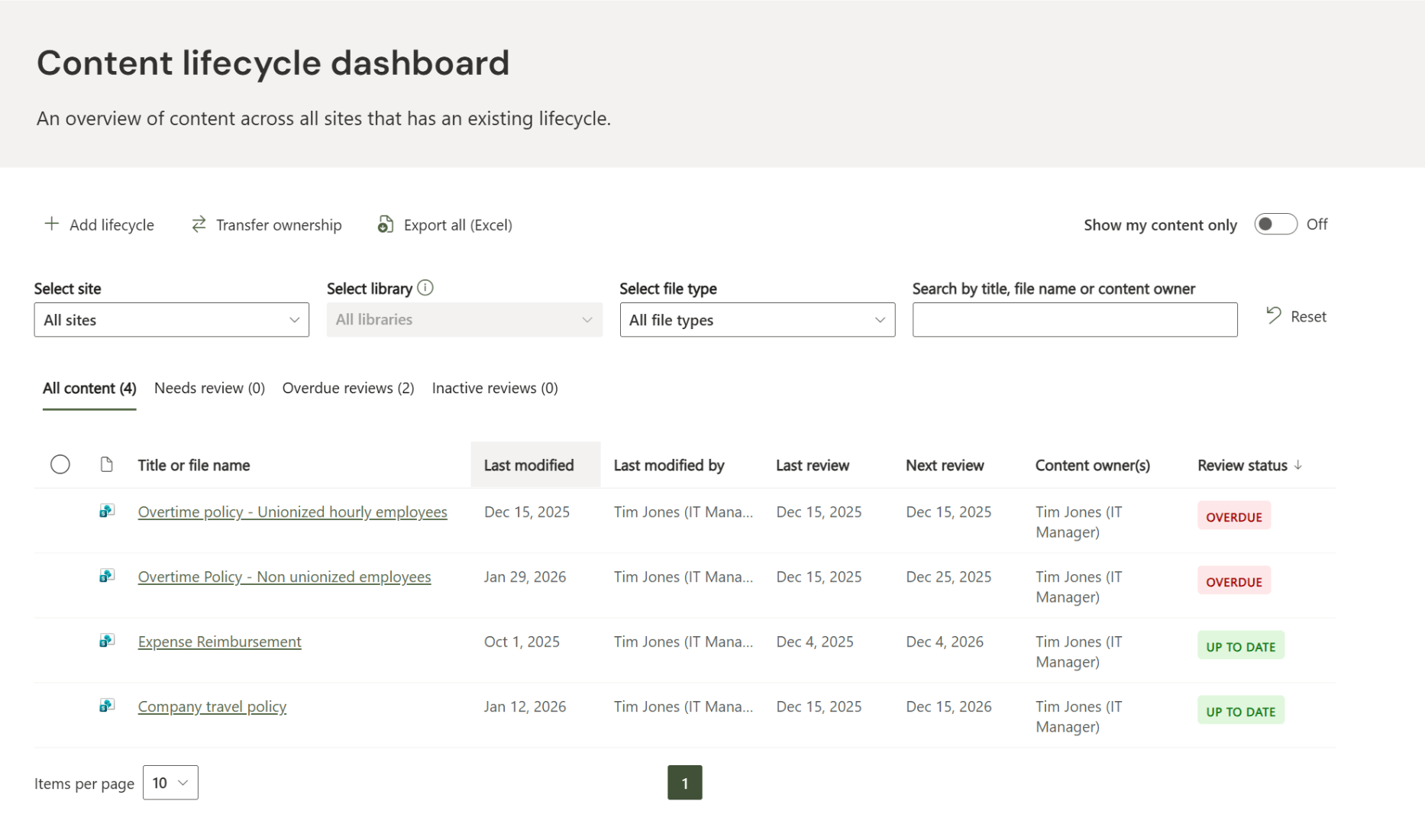
Instead of building a constant feeling of dread that your intranet is growing increasingly stale, this dashboard and set of email reminders can help your intranet stay healthy and evolve. And of course, content can be reassigned if your content owners change.
Extend your communications reach
A multi-channel communications strategy can help to ensure your employees receive critical information wherever they work. Unfortunately for communicators, once you post a news article, not everyone will read it. The reality is most employees are busy and don’t have time to visit your intranet unless they need something that’s available there. Instead, we recommend using a combination of strategies to help your communications find its audience.
SharePoint/Outlook feature: Email newsletter roundup
What it is: Microsoft Viva Amplify and Outlook both offer the ability to create a simple email newsletter that summarizes your most recent stories. With Viva Amplify, you can also post a story across different channels if you’re planning to create a page in SharePoint and a post in Microsoft Teams or Viva Engage.
How to use it: In either case, we recommend creating a simple list of the most recent news articles you want to call attention to. Don’t recreate the entire article in your newsletter; instead, link the user back to the intranet to view the full news story. Many organizations aim to publish a newsletter on a weekly or monthly cycle, which builds muscle memory for employees and will foster adoption over time if the content is useful and entertaining.
SharePoint feature: Announcements
What it is: Announcements are bundled with Viva Connections and enable you to create alerts. The benefit of using the announcements capability is that it also creates a Microsoft Teams and mobile phone notification that can garner employees’ attention quickly.
How to use it: Announcements should be used sparingly as they can be seen as an annoyance. You want to use this capability when there is urgency around the communication, and if it does not apply to everyone, audience target it to a specific audience group. You can also set a date and time when the announcement is visible or schedule it to trigger a notification at a certain time. Just be aware that creating an announcement is a premium feature today that requires extra licensing. It also requires some advanced knowledge of the Entra ID groups or Microsoft 365 Groups that can be used for content targeting.
Why organizations choose GO
Many companies believe SharePoint gives you all the right building blocks, and yet they still struggle to bring their new intranet to life.
That’s why we built GO – a proven, enterprise grade packaged approach designed to extend SharePoint Online, not replace it. GO builds on Microsoft 365’s native capabilities to support content authors, improve how news and knowledge are experienced and help organizations create intranets that feel intentional rather than cookie-cutter.
Organizations choose GO because it helps employees find what they need, trust what they find and feel connected to the organization behind it.
If you’d like to learn more about GO Intranet, book a demo or watch our on-demand video: You don’t have to break up with SharePoint to have a great intranet.